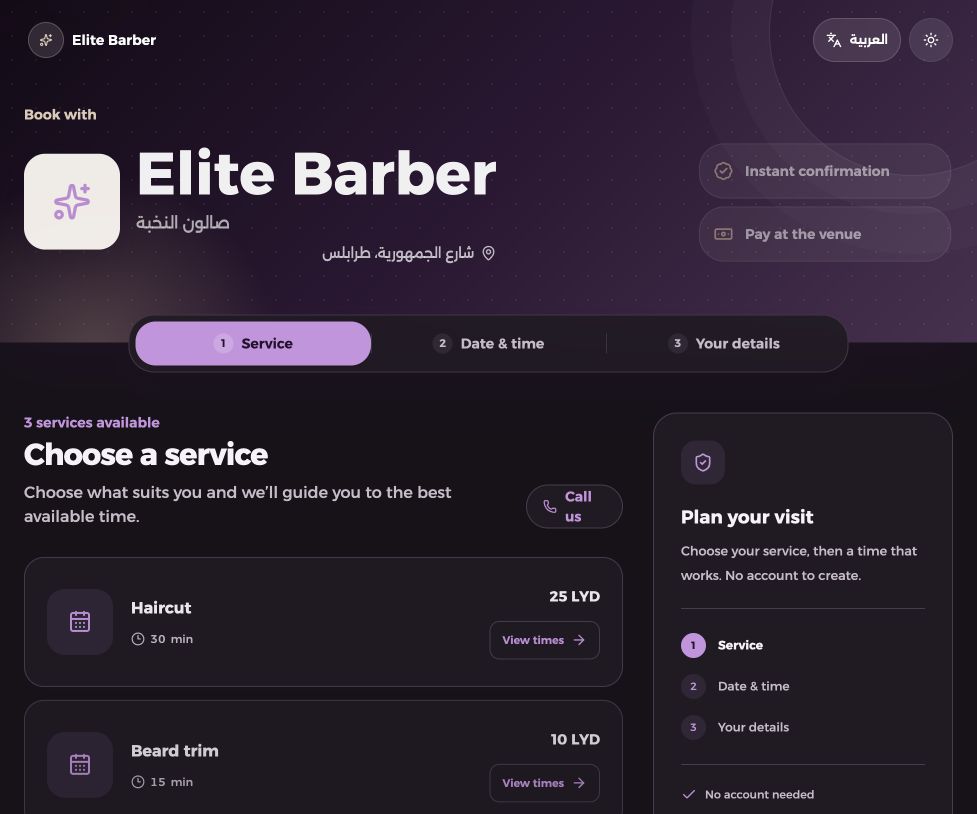
Make it immediately clear who customers are booking with.
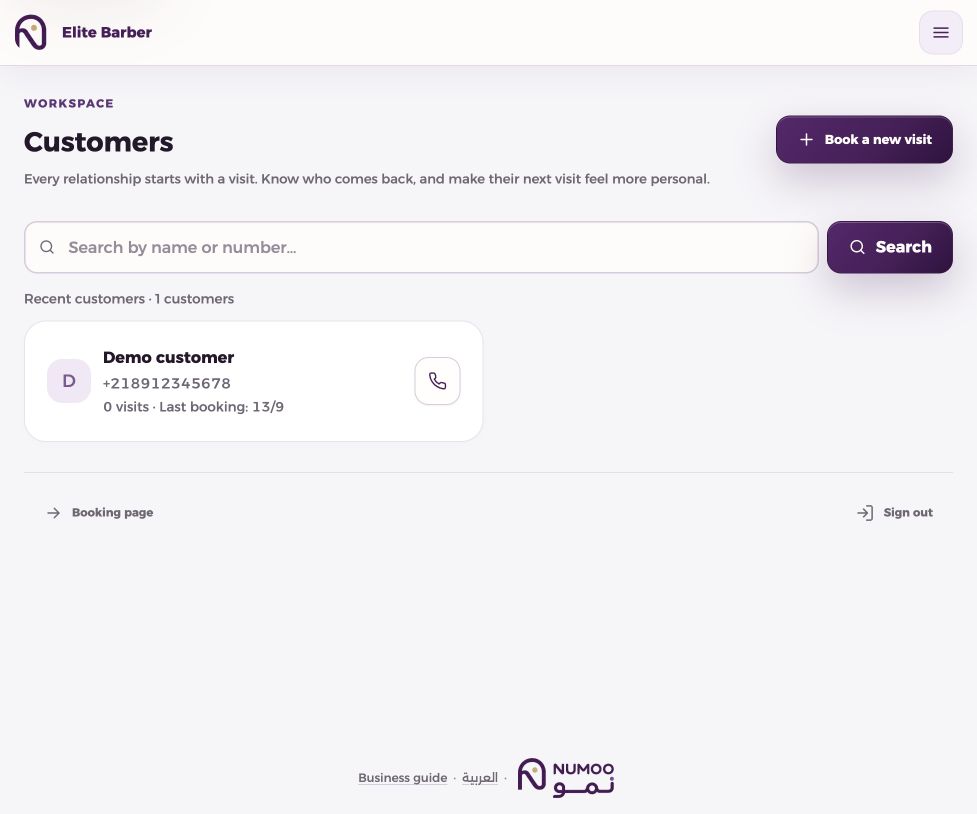
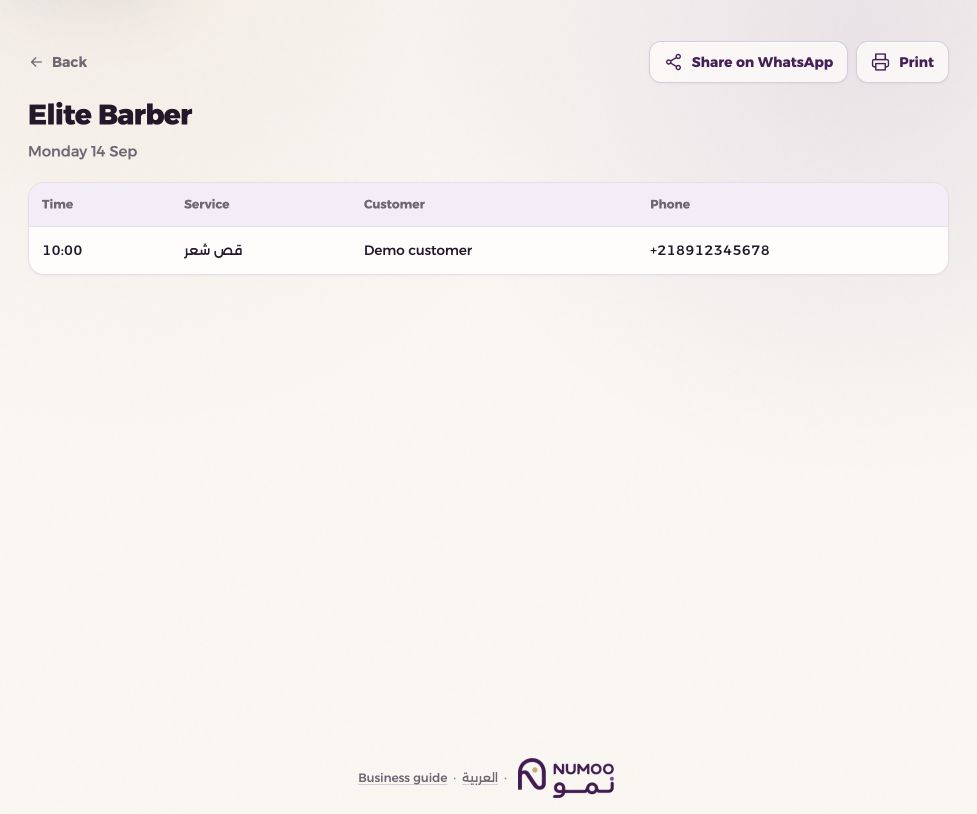
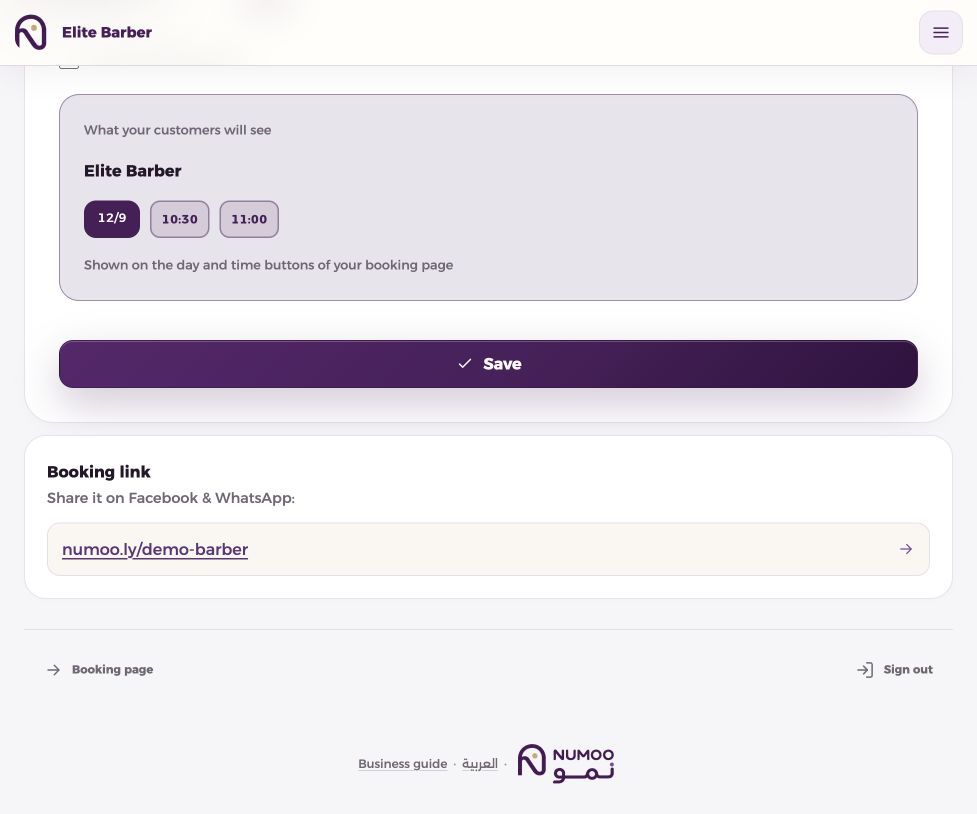
Click to enlargeDemonstration business. Your business data and available controls may differ.
Set your business information+
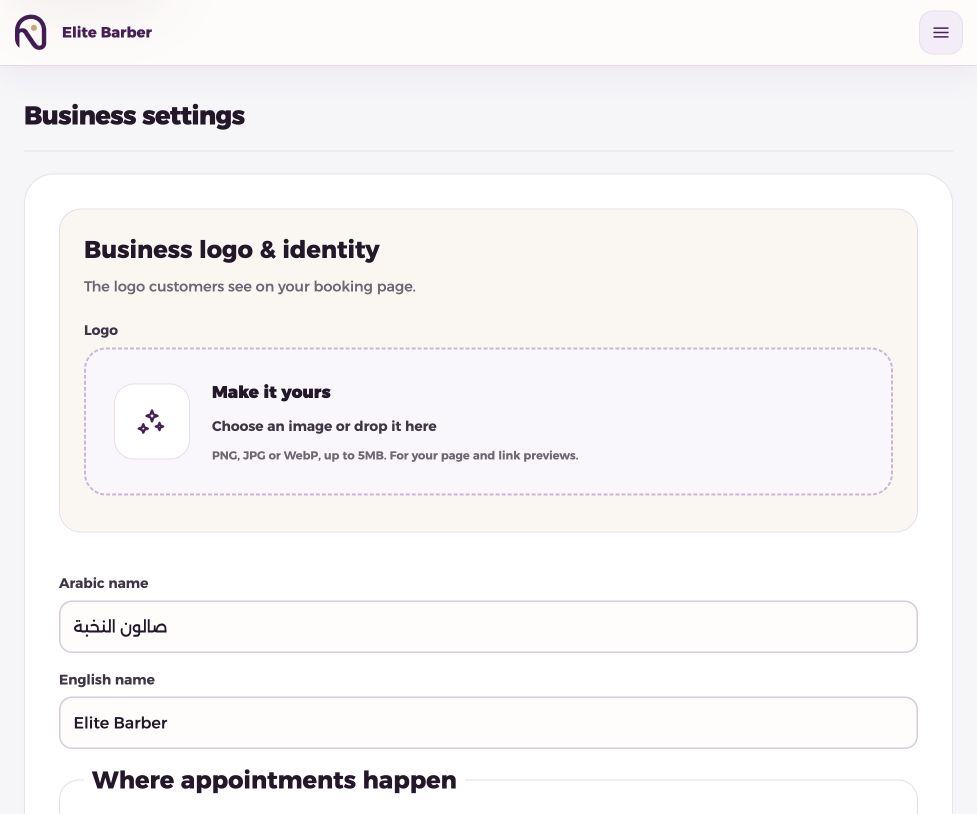
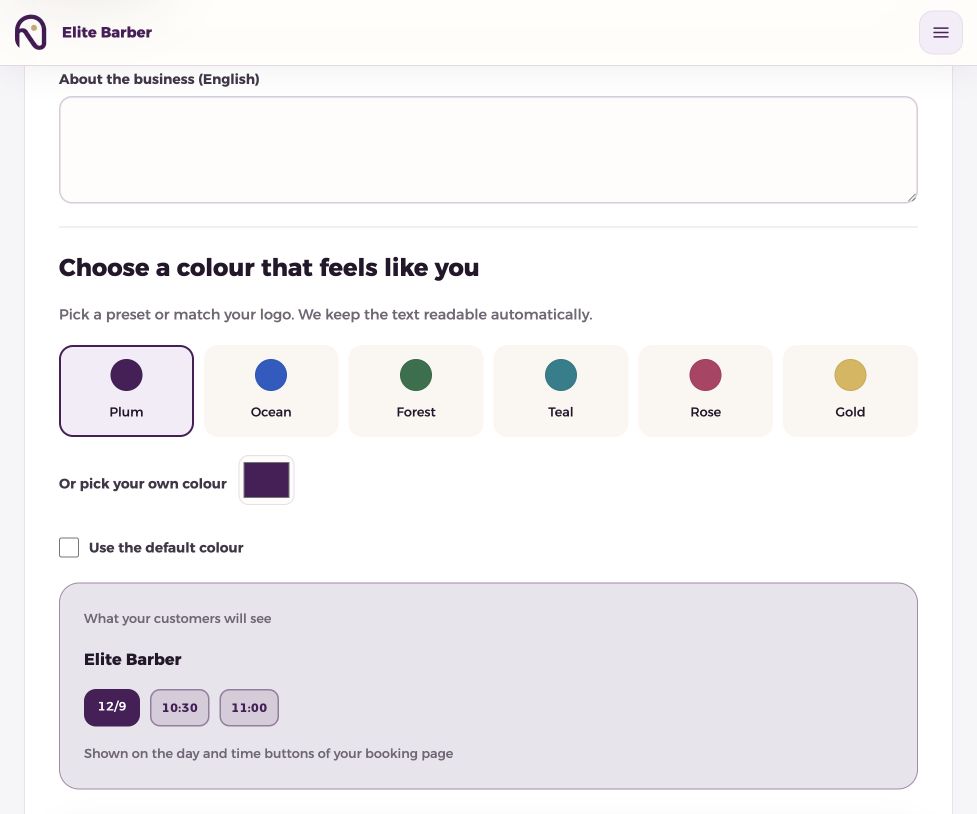
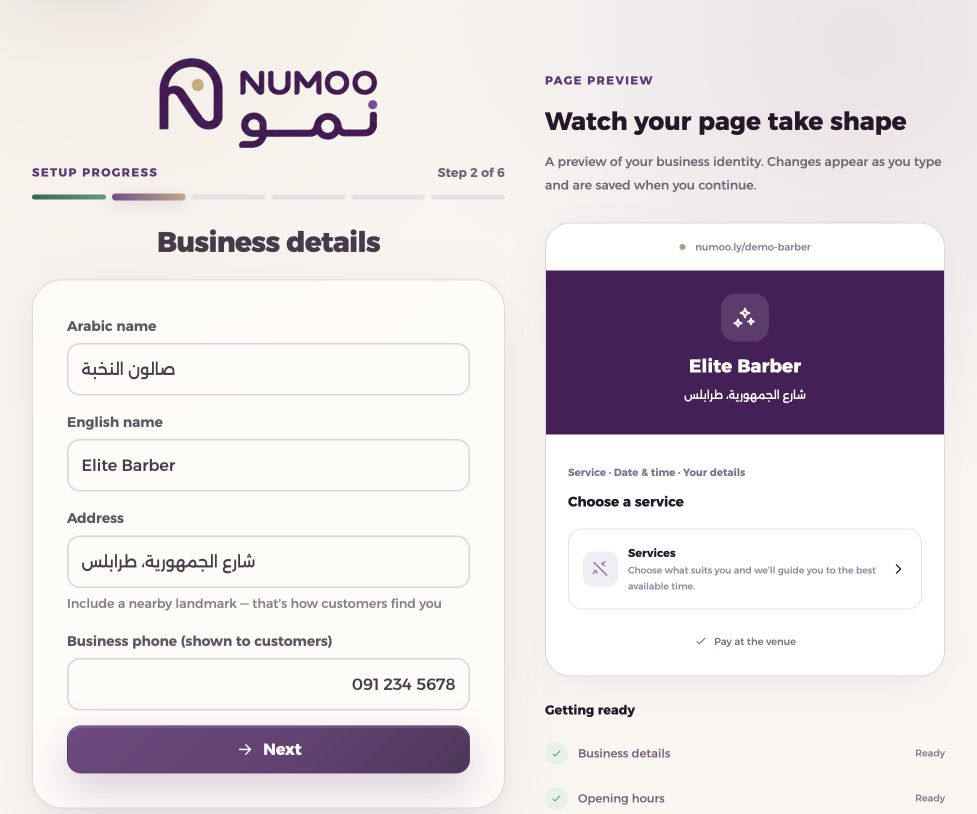
Open Settings. Enter the Arabic business name and add the English name for English-speaking customers.
Write a short description in each language: what you offer, who it is for, and any useful arrival instructions. Descriptions allow up to 300 characters.
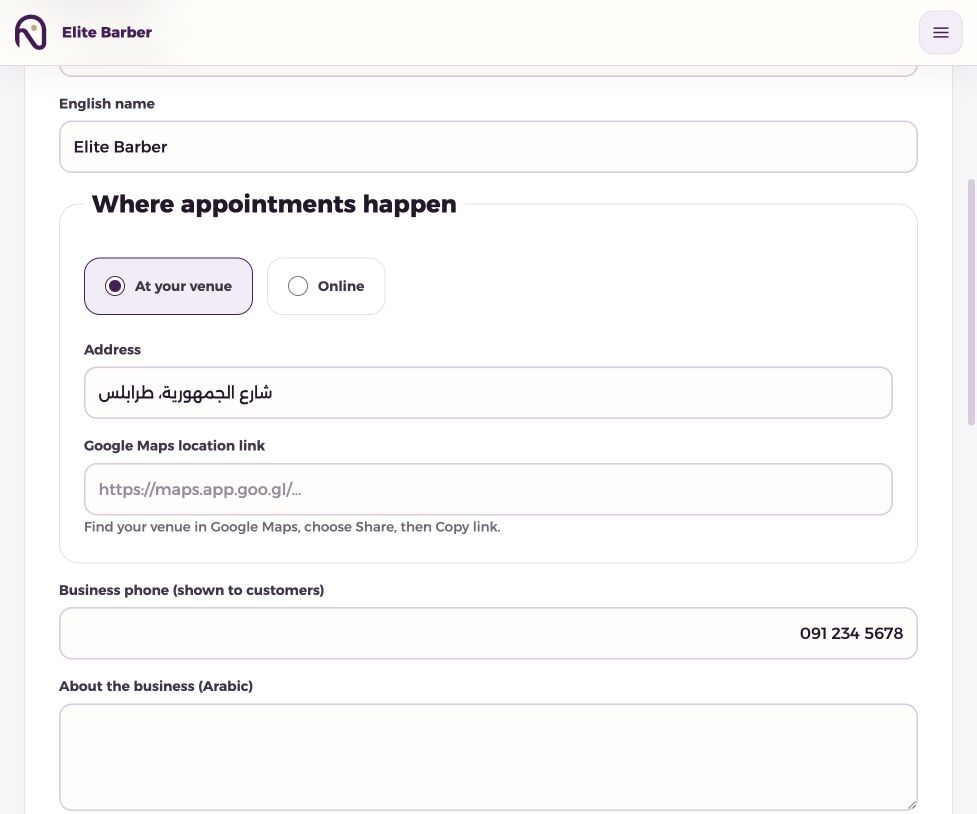
Enter the business contact number customers should call. This is separate from the phone you use to sign in.
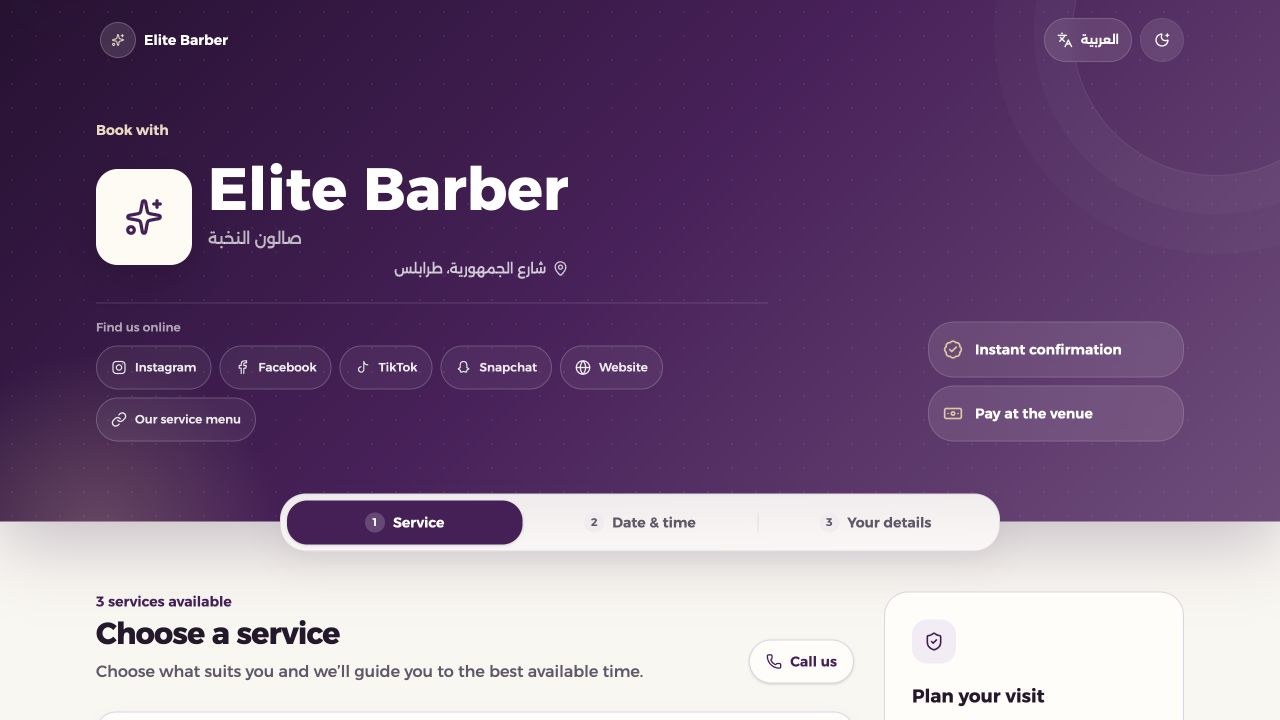
Save, then open Booking page and switch between Arabic and English to check both versions.
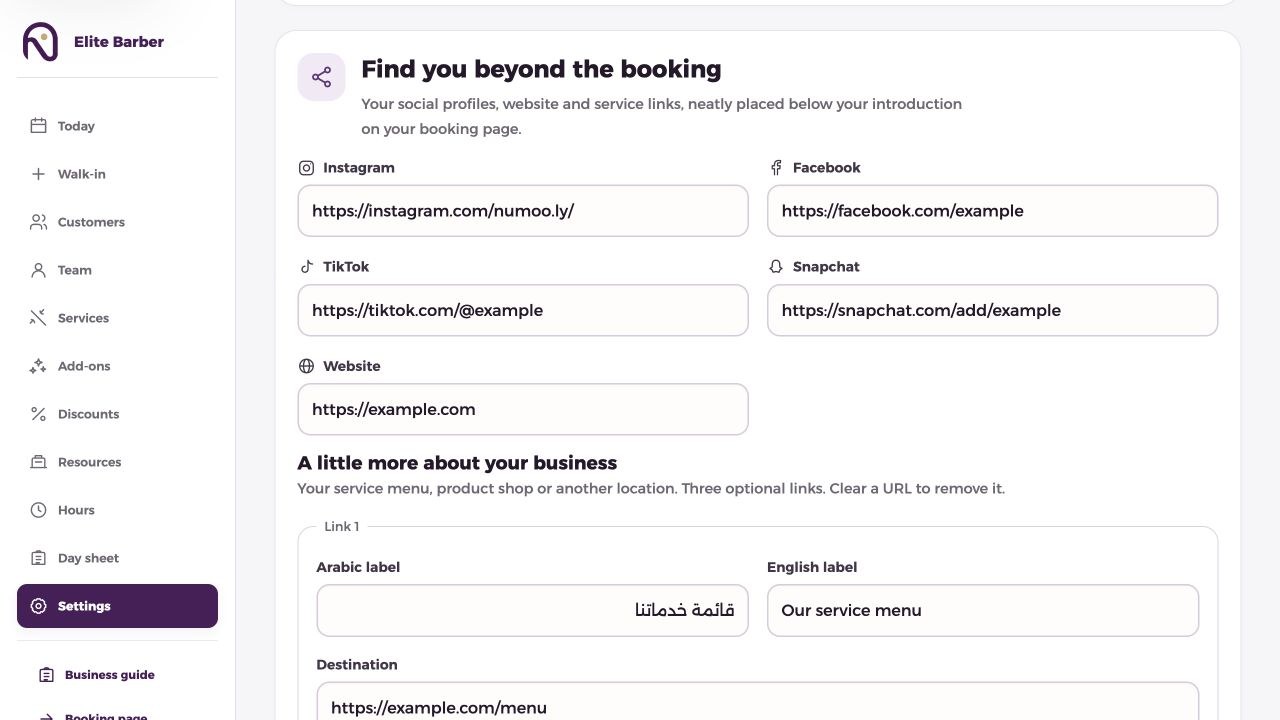
Open Settings as an owner or a manager allowed to manage configuration. Find “Find you beyond the booking”.
Add full public HTTPS URLs for Instagram, Facebook, TikTok, Snapchat and your website. Leave unused fields empty.
Add up to three custom destinations. Each needs a name in Arabic or English (up to 50 characters); add both names for a bilingual page. Examples: a product shop, a menu or another location.
Choose Save links, then View your booking page. Links appear below the business introduction and open in a new tab.
Move your Linktree destinations and update your bio+
List the destinations on your current link page. Copy each destination into its matching Numoo field; there is no automatic Linktree import.
Need more than three custom links? Keep your Linktree page and add it as one custom link, such as More useful links. Keep any external tools you still rely on.
Save and test each destination on your phone in Arabic and English. Use public links only, never private appointment-management links or customer information.
Copy your existing public booking address from Settings. Put it in your social profile’s website or links field and check the saved profile as a visitor.
Keep the old link page available during the change. Adding Numoo links does not delete or change your Linktree account, services or existing bookings.
Update or remove a link+
Edit the URL or custom label in Settings and choose Save links. To remove a link, clear its URL and save.
If saving fails, use a complete HTTPS URL, the correct social platform and a custom name no longer than 50 characters.
Open the public page to verify the result. These links do not currently provide per-link click analytics.
Click to enlargeDemonstration business. Your business data and available controls may differ.
Add directions to your venue+
In Settings, choose the venue / in-person location option. Enter a clear address, including a useful landmark if needed.
Open your business location in Google Maps, choose Share, and copy its link. Paste the complete HTTPS link into the map-link field.
Save and open a booking confirmation to check Get directions. Confirm the map points to the entrance your customers should use.
Set an online meeting destination+
Choose Online and paste a valid HTTPS meeting link, such as Google Meet or your meeting provider. Save your changes.
Check the meeting action on a booking confirmation. Test the link using a customer device and verify any meeting admission settings.
This is a business-level link, not an automatically generated private room for each appointment. Do not paste an organizer-only or administrator link. Online location does not mean online payment.
A resource is the person or place whose time can be booked.
Click to enlargeDemonstration business. Your business data and available controls may differ.
Create a bookable calendar+
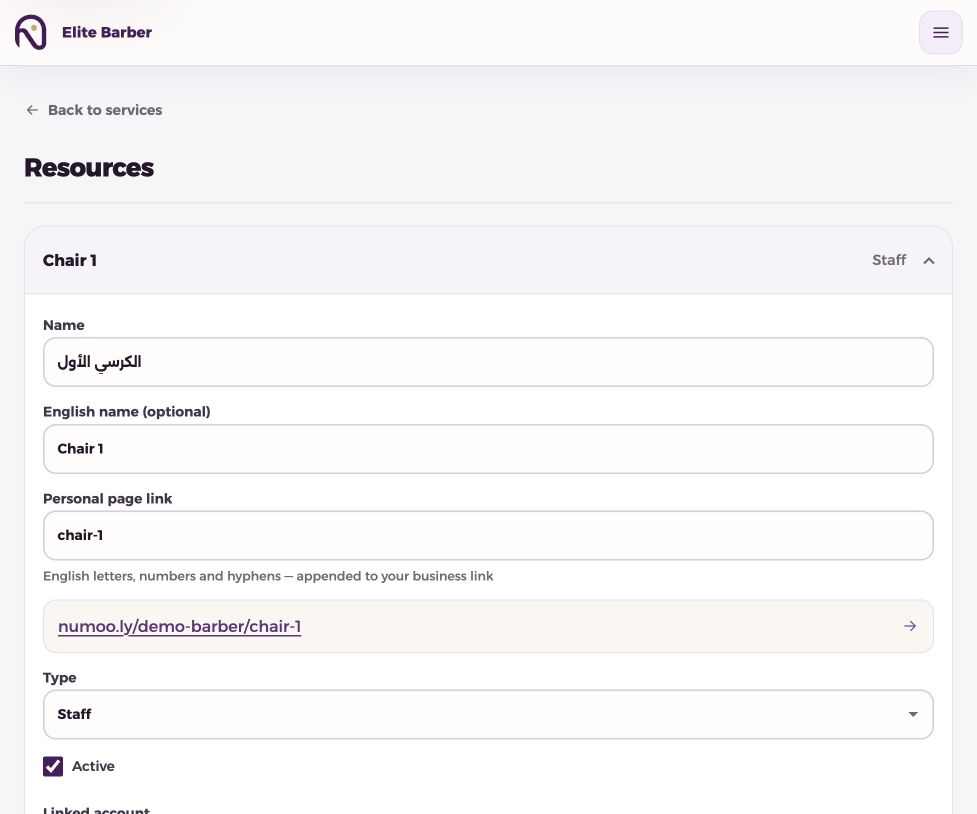
Open Resources and expand New resource. Choose the appropriate type: staff member, asset or room.
Enter its Arabic name and, optionally, English name. For example: Dr Ahmed, consultation room, or Chair 1.
Set a short link slug if needed, or use the suggested one. Use lowercase English letters, numbers and hyphens.
Keep the resource active, save it, then assign it to the services it can deliver. Creating a resource alone does not make every service available on it.
Edit, pause or share a resource+
Expand an existing resource to edit and save its details. Turn off Active to pause new bookings for it.
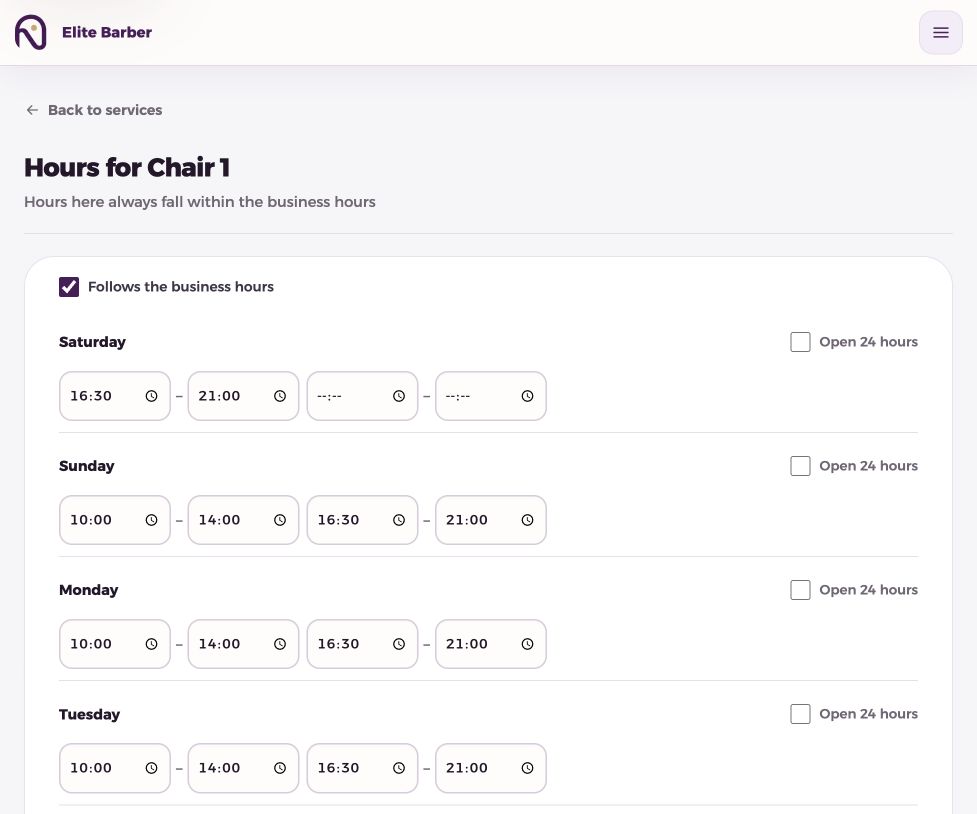
Use its Hours link to adjust its calendar. Use its public link when customers should book that particular person or room.
A calendar is not a staff login. Invite and link the person from Team if they need dashboard access.
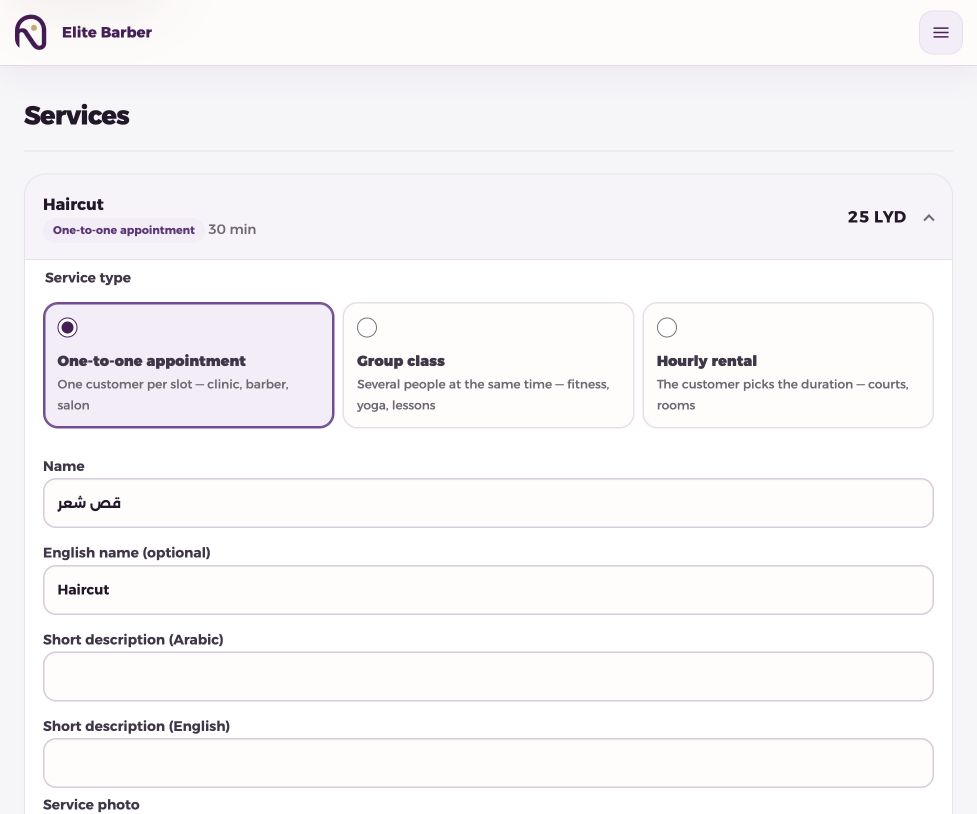
Open Services, expand New service, and choose an appointment, group class or hourly rental.
Enter an Arabic name and optional English name. Add concise descriptions in both languages, up to 160 characters each.
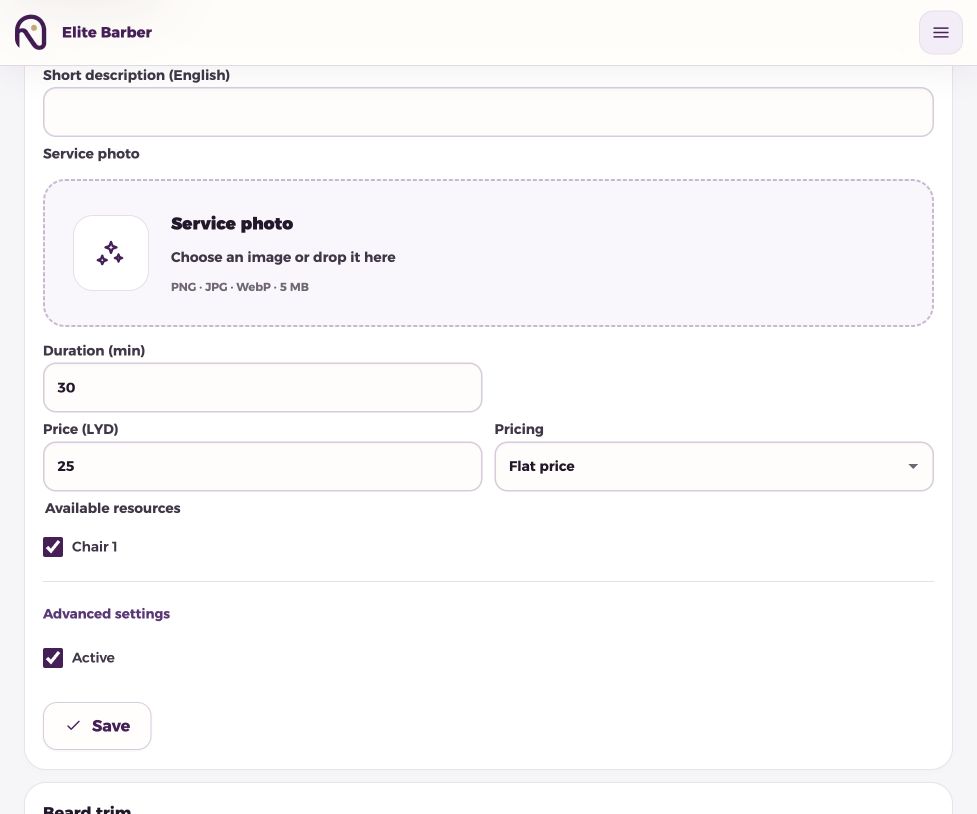
Choose a service photo using the upload area. PNG, JPG and WebP are supported up to 5 MB. Preview the image before saving.
Set duration and price in LYD, select the resources that provide the service, keep it active, and save. Check it on the customer booking page.
Configure classes and rentals+
For a group class, set its duration and capacity: how many customers can book the same session.
For an hourly rental, set minimum and maximum duration and the duration increment customers can choose. Check whether pricing is flat or per hour.
Test the customer flow after saving: the available durations or remaining class capacity should match your offer.
Control booking rules and make changes+
Expand Advanced to add preparation or cleanup time before and after appointments. These buffers affect availability.
Set minimum notice to prevent last-minute bookings, and the booking horizon to limit how far ahead customers can book.
Expand an existing service to update it. Replacing or removing its image requires Save. Turn off Active to stop new bookings without deleting old booking records.
A listed price is a booking value, not proof of payment. Do not tell a customer payment has been collected merely because a booking is confirmed.
Offer products and extras alongside a booking, with clear prices and quantities.
Create an add-on+
Open Add-ons in your dashboard and expand New add-on. Enter its Arabic name and, optionally, its English name and a short description in each language.
Add an optional product photo (PNG, JPG or WebP, up to 5 MB), set its price in LYD and choose the maximum quantity per booking, from 1 to 5.
Set its display order, leave Active selected and save. New add-ons use the shared list across your services; this form does not offer per-service assignment.
Open your public booking link, choose a service and time, and check the optional extras before confirmation. Up to eight eligible add-ons are shown; use the display order to put the most useful first.
Understand time, totals and later edits+
An add-on does not reserve time, extend an appointment or change capacity. If an extra needs additional appointment time, configure a suitable service instead.
For example, a 40 LYD service plus two 5 LYD extras totals 50 LYD. A service discount changes the service amount only; extras keep their own prices.
Edit an add-on and save to change future choices. Turn off Active to hide it from new bookings. Confirmed bookings retain the saved add-on names, quantities and prices.
A confirmed total is the booking value, not a payment receipt. Payment is currently arranged at the visit.
Run offers on selected services without changing their saved catalogue prices or asking customers for a promo code.
Create and preview an offer+
Open Discounts and choose New offer. Give it an Arabic name and an optional English name that clearly describes the offer.
Choose a percentage discount (1–100%) or a fixed amount in LYD. Select the services included in the offer and review the price preview.
For example, 20% off a 50 LYD service makes it 40 LYD. A fixed discount cannot make the service price negative. Add-ons are priced separately.
Set an optional start and end in your business timezone. With no start date the active offer begins immediately; with no end date it continues until paused. Leave Active selected and save.
Know when the discount applies+
The offer checks when the customer makes the booking, not the appointment date. An offer ending Friday can apply to a booking made Thursday for a visit the following week.
The customer receives an eligible discount automatically; no promo code is required. The selected service must also be active and available for booking.
When several offers cover the same service, the best customer price wins. Discounts do not stack. Rental pricing is calculated for the selected duration before applying the service discount.
Open your public booking link and check the final price with the intended service, duration and extras before sharing the offer.
Pause, edit or finish a promotion+
Use the status cards to distinguish Live, Scheduled, Paused and Ended offers. Expand an offer to edit its services, value or dates, then save.
Use Pause to stop applying the offer to new bookings. Resume makes it eligible again only if its dates allow it. An offer stops at its end time.
The service catalogue retains its original price. Editing, pausing or ending an offer does not reprice confirmed bookings; simply rescheduling a booking also keeps its saved price.
These are automatic service offers, not a bulk SMS marketing campaign. Share your business booking link through your normal channels when you want to announce one.
See who is coming, what is next, and what needs attention.
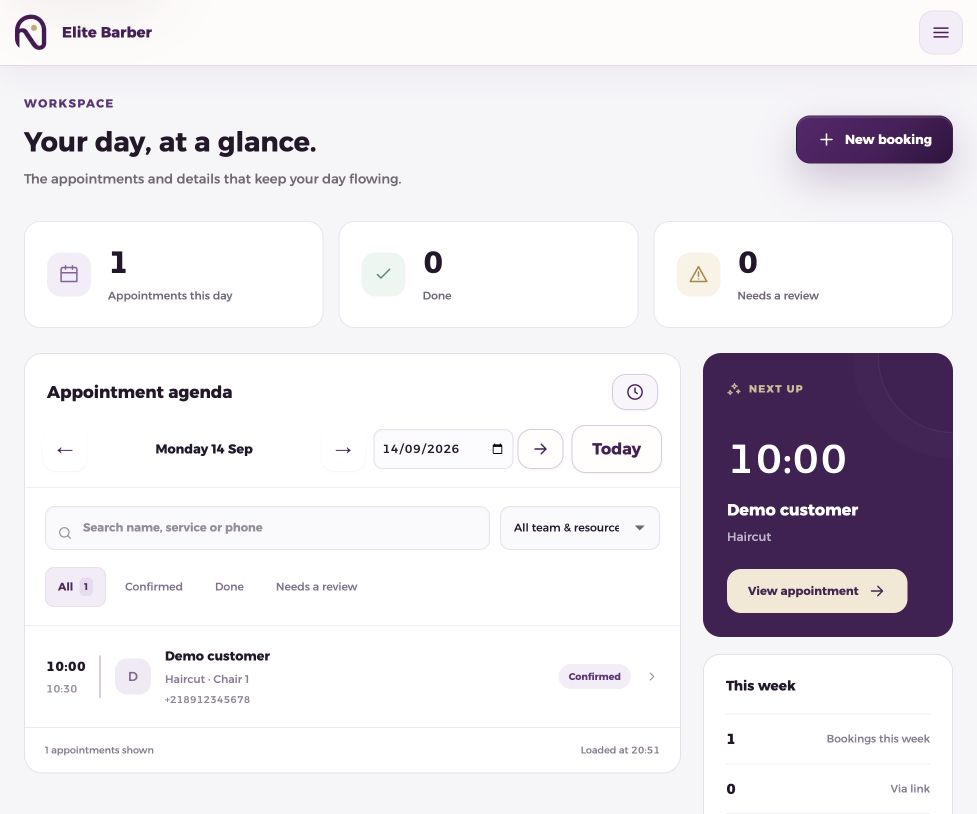
Click to enlargeDemonstration business. Your business data and available controls may differ.
Navigate and filter your day+
Open Today. Move to the previous or next day, pick a date, or return to today.
Choose all calendars or one resource, then search by customer or service. Use status filters to focus on confirmed, completed or attention-needed bookings.
Open a booking for its full details and actions. Use Refresh for the latest view.
The next-appointment card helps you prepare. An overdue confirmed appointment needs review; it does not automatically prove that the customer failed to attend.
Keep the booking status true to what actually happened.
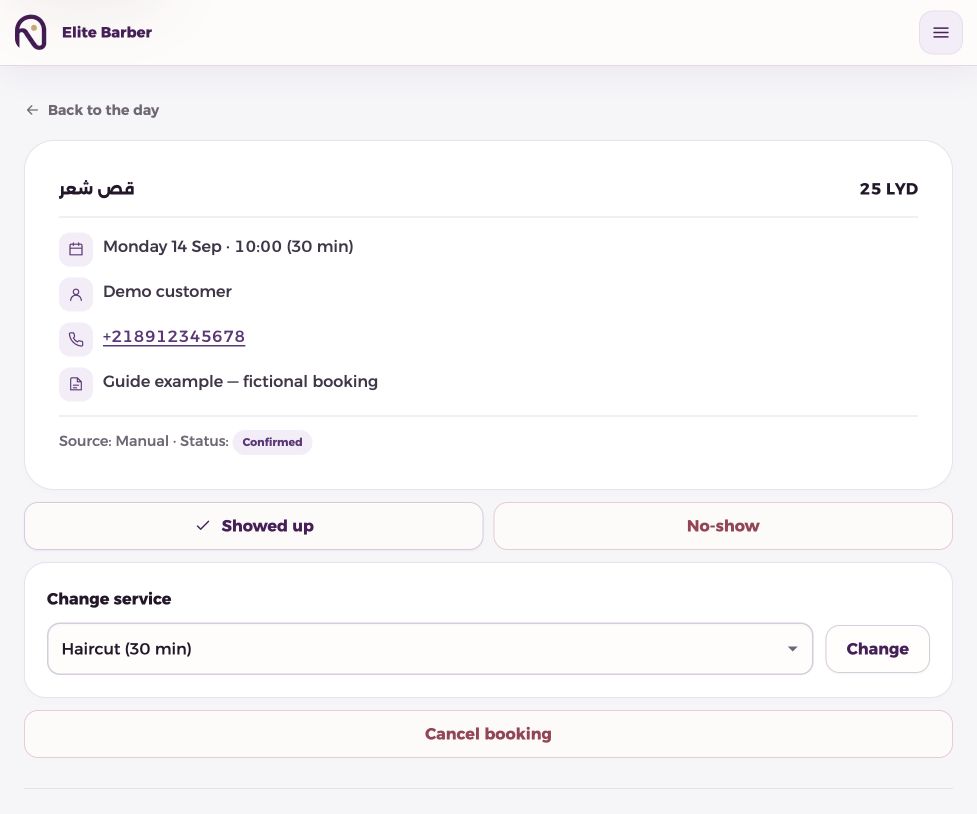
Click to enlargeDemonstration business. Your business data and available controls may differ.
Update a confirmed booking+
Open the booking from Today. Review its service, customer, phone, notes, time, source and current status.
Use Showed up after the service is delivered. Use No-show only when you have confirmed the customer did not attend.
Change service keeps the start time. A longer service needs enough free time after the booking. Changes to or from group classes are not supported. Check for an error before assuming the change was saved.
To cancel, choose Cancel and confirm the prompt. Verify the updated status; cancellation releases availability and notification is attempted where a phone is present.
Reschedule with the customer+
The customer can use the private management link from their confirmation or SMS and choose Reschedule.
They choose a new available time and confirm it. Check the updated booking afterwards. Their old time is not released just by opening the rescheduling page.
The business booking-detail screen does not currently offer a dedicated reschedule button. Coordinate through the customer’s management flow rather than promising an unavailable control.
Review the steps safely without creating a booking or sending a message.
Click to enlargeDemonstration business. Your business data and available controls may differ.
Safe walkthrough+
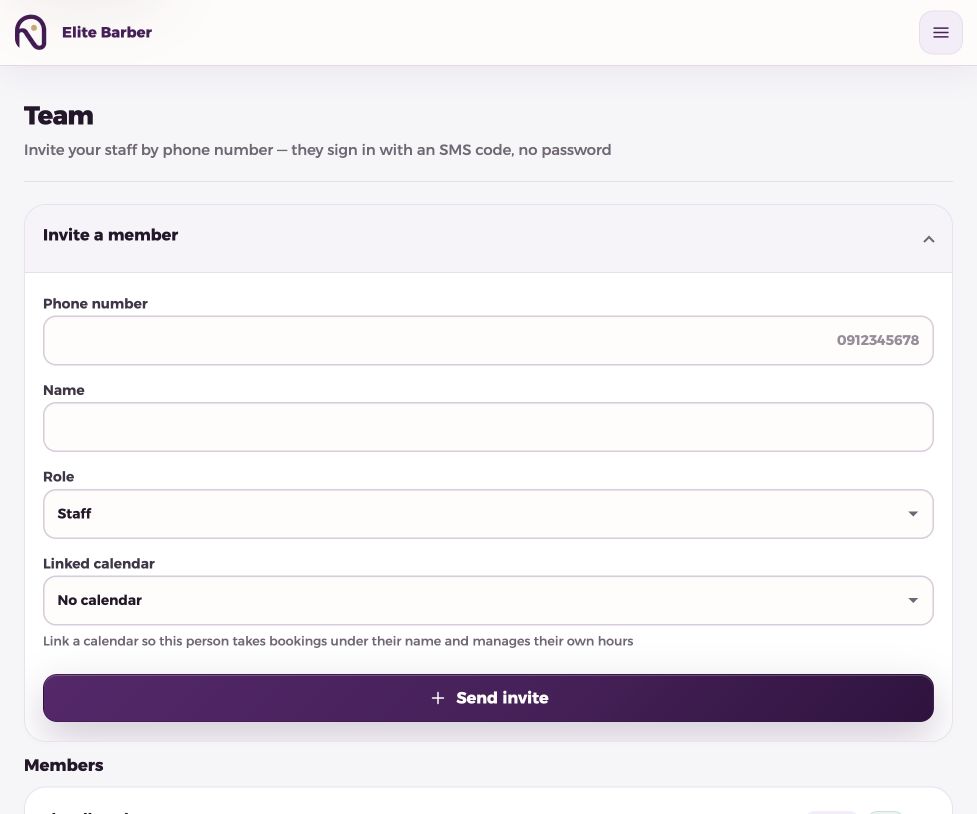
Open Launch kit from your dashboard, then Try the safe walkthrough.
Review the service, time and price, then open the example confirmation. No appointment is reserved and no message is sent.
This checks the steps and appearance, not message delivery or booking persistence.
Walk through a customer booking+
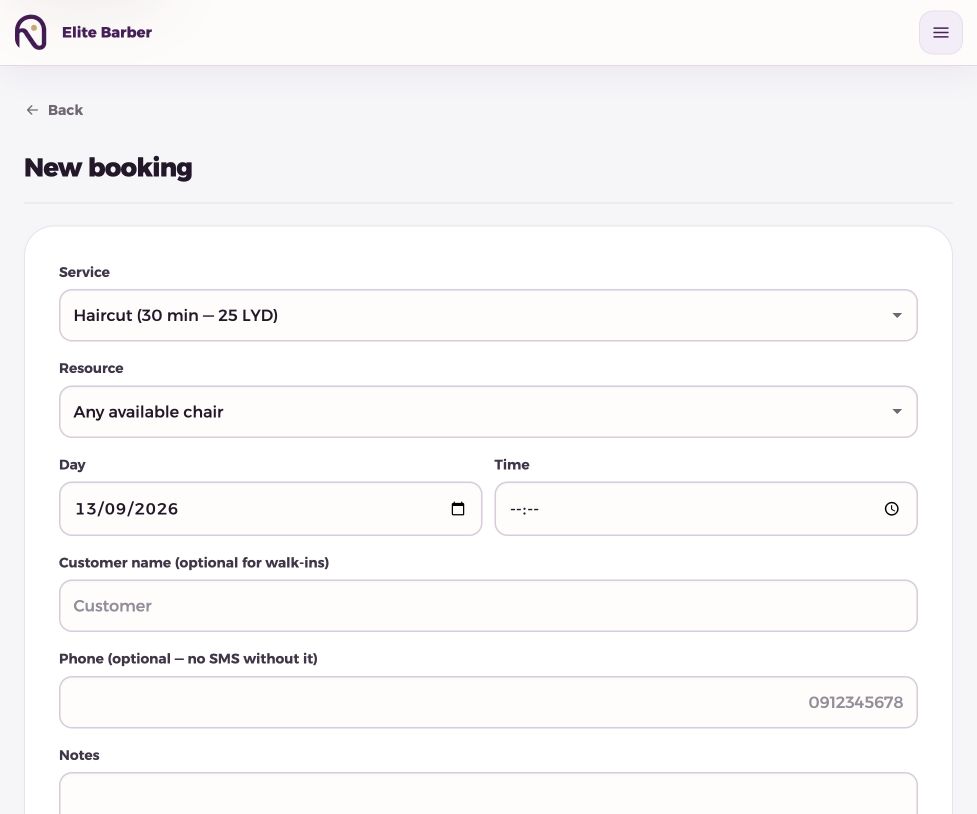
Open Booking page from the dashboard. Choose a service, then a person or resource where offered.
Choose a day and an available time. The full calendar helps customers explore more dates.
Enter the customer name, a valid Libyan mobile number and any optional notes, then confirm. No customer account is required.
For a test, use your own details and a suitable test slot: this creates a real booking and may send SMS. Cancel the test afterwards.
Use the confirmation page+
Review the confirmation summary and business name. Use Add to calendar to download a calendar event; this is not two-way calendar synchronization.
Get directions or the online meeting action uses the destination saved in business settings.
Reschedule and Cancel booking let the customer manage the appointment. Keep this private link safe: anyone holding it may be able to manage the booking.
SMS delivery depends on a correct number and the messaging provider. A delayed message does not mean the booking failed; check the dashboard before trying again.
Check that both the service and its assigned resource are active, with a valid resource assignment.
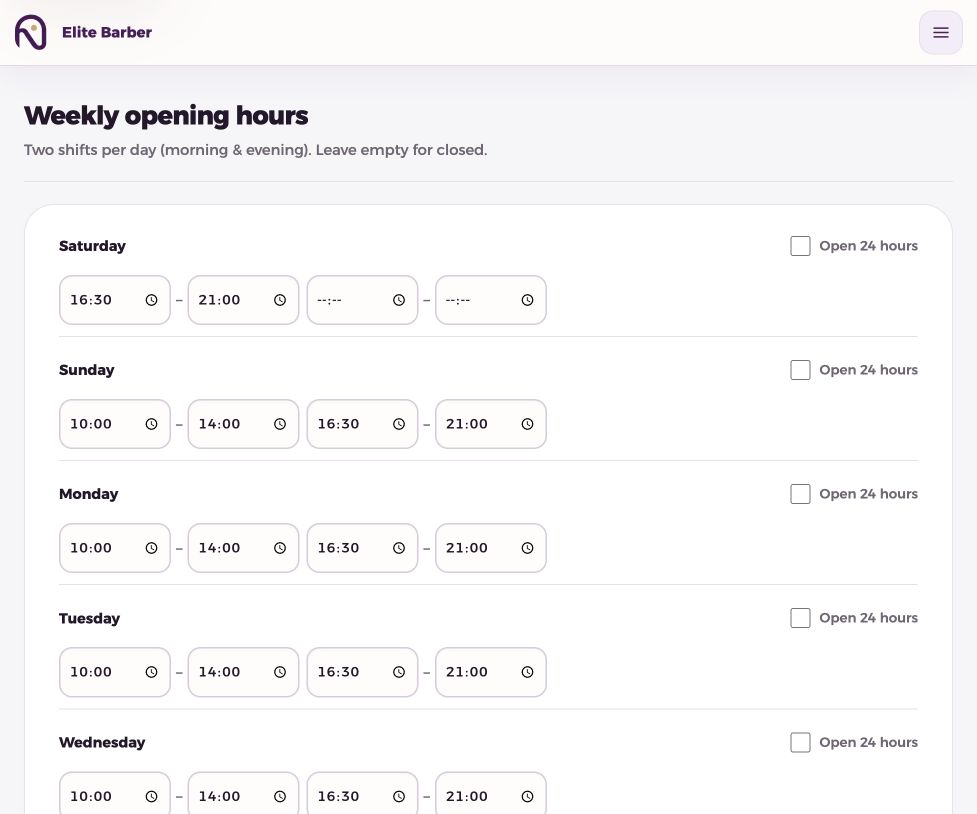
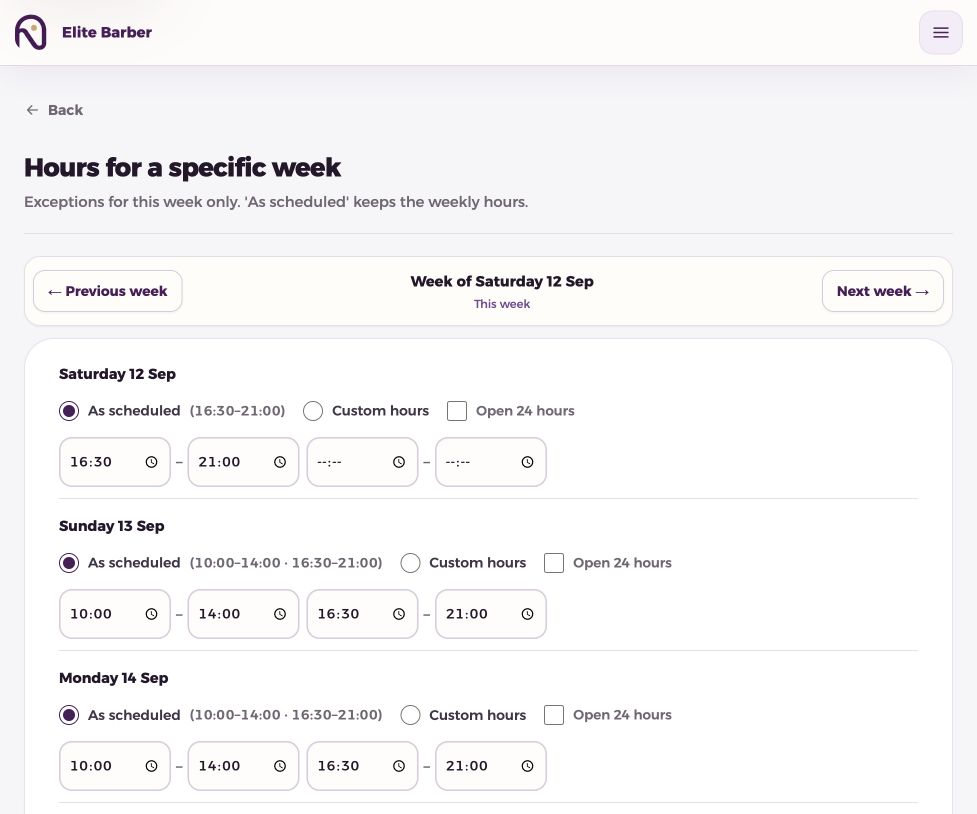
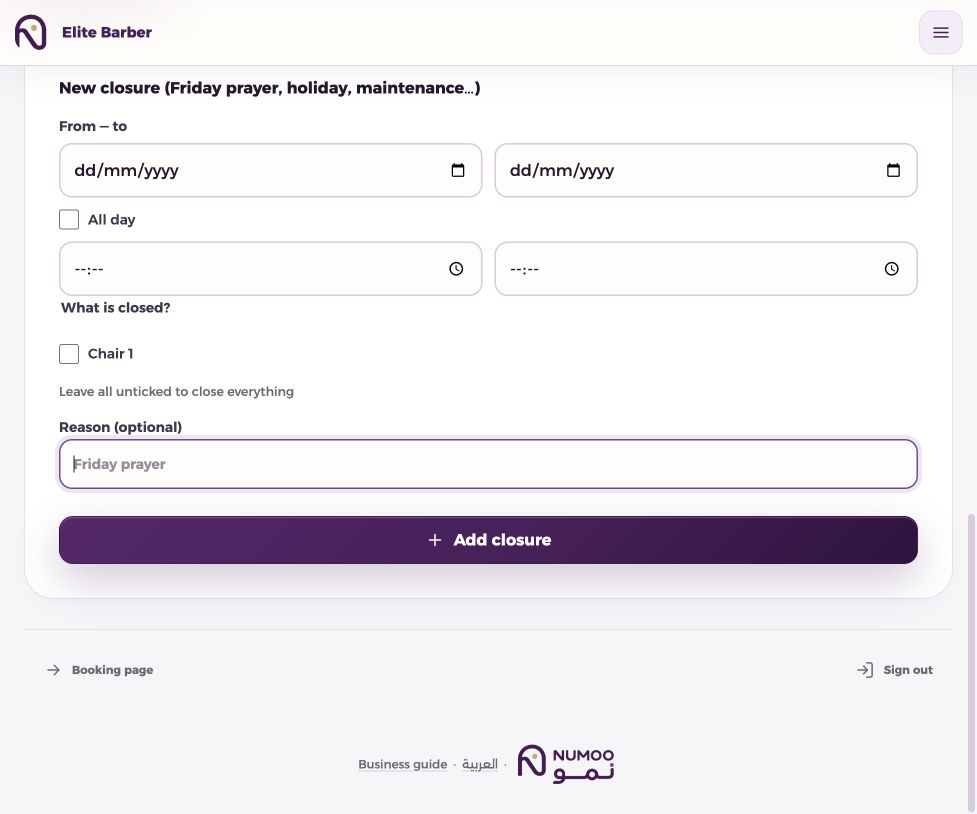
Review normal hours, that specific week, resource hours and closures. Check minimum notice, booking horizon, duration, buffers and existing bookings.
Make sure you are checking the correct date and resource, then refresh the public page.
Images, links or changes did not save+
Check the form for an error, confirm image type and size, and press Save after selecting a file.
Use complete HTTPS map or meeting links. Check the saved result from a customer view.
If a menu is missing, check your role and selected business. If a problem persists, note the page, action, time and error text for your platform administrator; never include OTP codes or private booking links in public screenshots.
What this version does not configure+
Online deposits, online payment collection and configurable bulk SMS marketing campaigns are not available in this version. Automatic service promotions are available in Discounts; see the Discounts chapter.
Booking confirmation and reminder messaging should not be confused with a configurable marketing campaign.
This guide describes the controls currently available. A feature mentioned on a marketing page is not necessarily an enabled business setting.
Optional Google Analytics cookies help us understand how people use this site. We don’t send customer names, phone numbers or booking details. Learn more
 Click to enlarge